eagle-iptv-Subscription

Installation Guide

Follow our simple steps to install your IPTV subscription on your favorite device and immediately enjoy top-quality TV.

📱 Android smartphone and tablet

Step-by-step guide for installing Eagle4k IPTV
App: IPTV Smarters Pro (free download from Google Play Store)

✅ 1. Download IPTV Smarters Pro

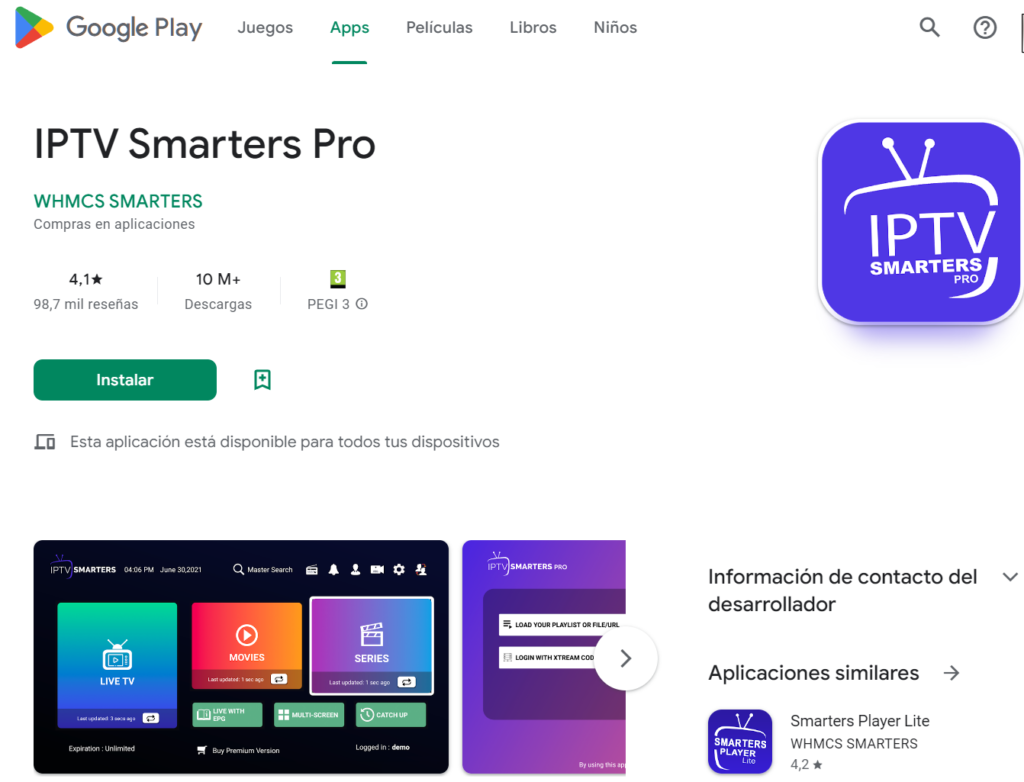
Open the Google Play Store on your Android device.

Search for IPTV Smarters Pro.

Click on Install and wait until the app is downloaded.

✅ 2. Open the app and accept the terms and conditions. Open IPTV Smarters Pro.

Accept the general terms and conditions if requested.

✅ 3. Enter your IPTV details. Click on Log in with Xtream Codes API.

Enter the details you received from IPTV Koning:

Username

Password

Server URL

Give your list a name (for example: IPTV King).

Click on Add user.

✅ 4. Start watching

After logging in, the app automatically loads your channels and VODs.

Select Live TV, Movies, or Series and enjoy your subscription!

💡 Tip:

Ensure a stable Wi-Fi connection for the best quality. Use a VPN if necessary for extra privacy.

📱 iPhone & iPad

Step-by-step guide for installing the IPTV
App: IPTV Smarters Player (free via the App Store)

✅ 1. Download IPTV Smarters Player

Open the App Store on your iPhone or iPad.

Search for IPTV Smarters Player.

Tap ‘Download’ and install the app.
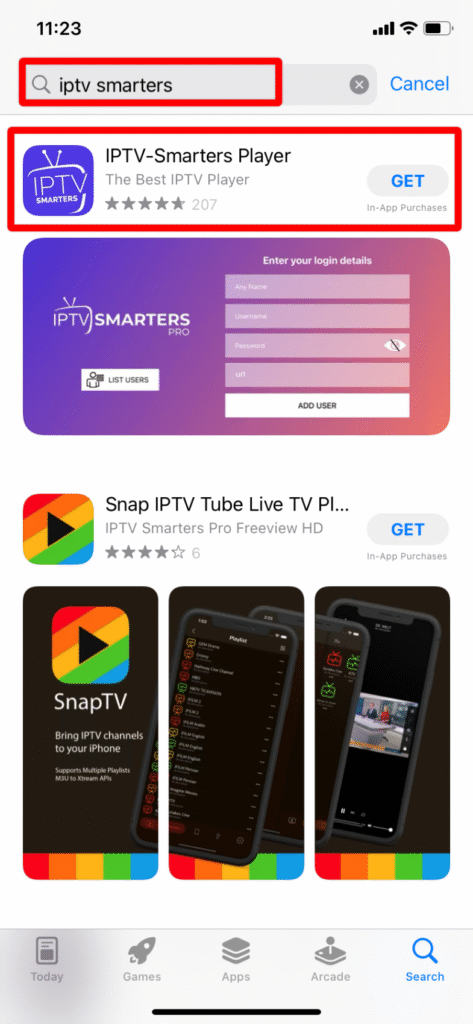
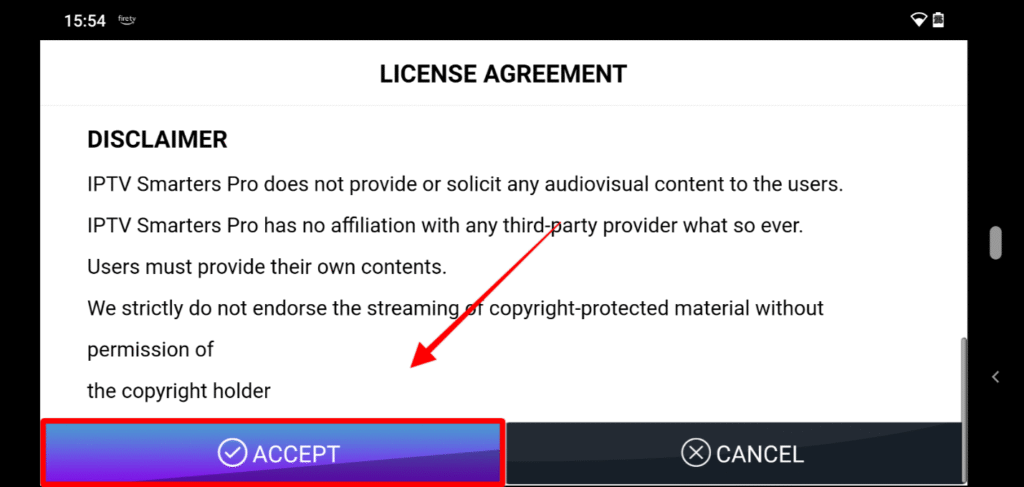
✅ 2. Open the app and accept the terms and conditions. Open IPTV Smarters Player.

Accept the general terms and conditions if requested.
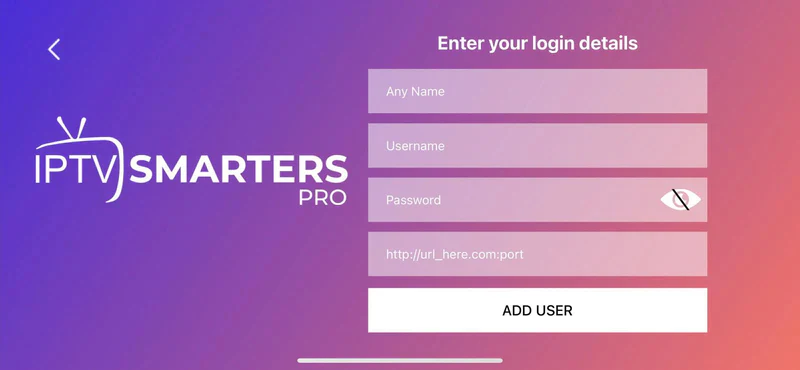
✅ 3. Log in with your IPTV details. Select ‘Log in with Xtream Codes API’.

Enter the details you received from Eagle IPTV :

Username

Password

Server URL

Give your profile a name, for example: IPTV Eagle.

Tap ‘Add user’.
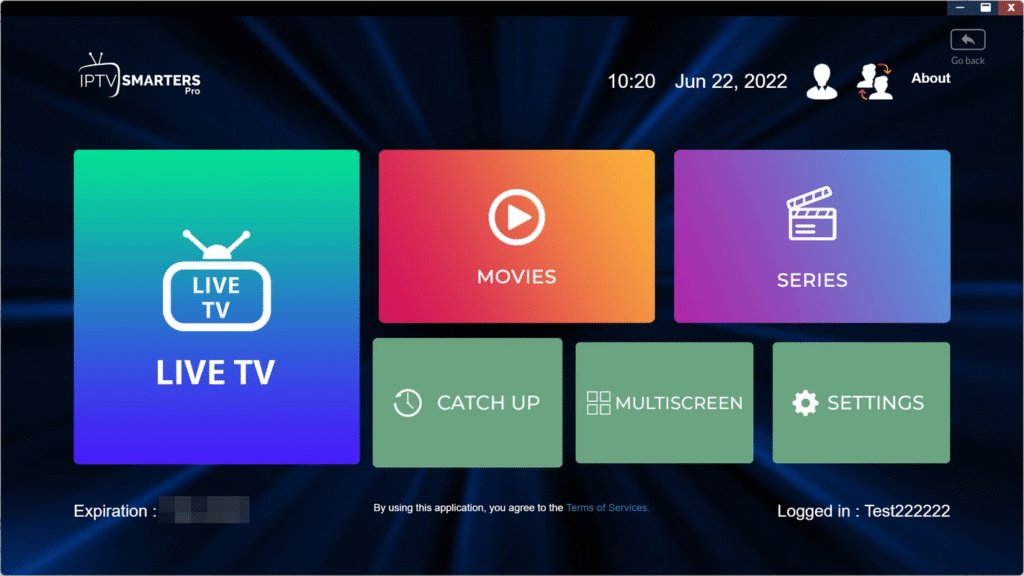
✅ 4. Start watching

The app automatically loads your channel list and VOD.

Choose between Live TV, Movies, or Series. Enjoy watching!
💡 Tip:

Use a stable Wi-Fi connection for the best image quality. A VPN is recommended for extra security.
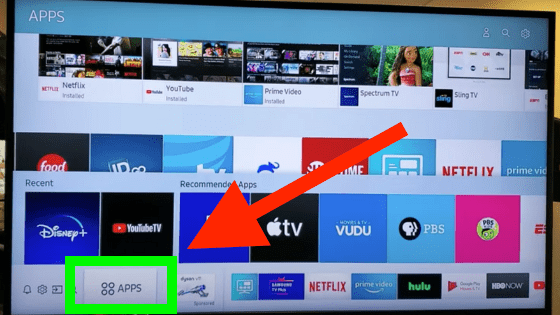
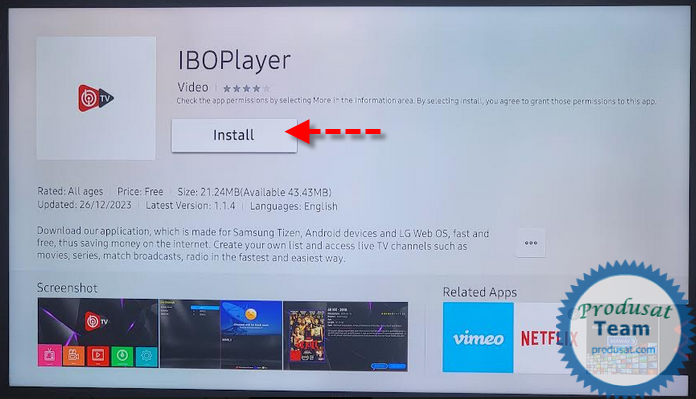
📺 Samsung Smart TV

Step-by-step guide to installing IPTV with Ibo Player

✅ 1. Download Ibo Player

Turn on your Samsung Smart TV.

Open the Apps menu (Samsung Smart Hub).

Search for Ibo Player.

Select and install the app.

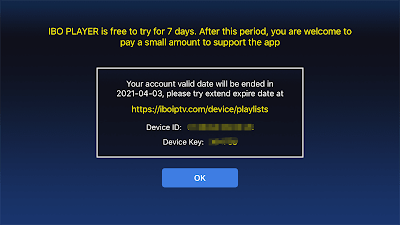
✅ 2. Open the App and Note the App ID & Device ID. Start Ibo Player.

On the home screen, you will see a Device ID and a Device Key (sometimes also called App ID). Write both down.

✅ 3. Activate and Upload your IPTV List

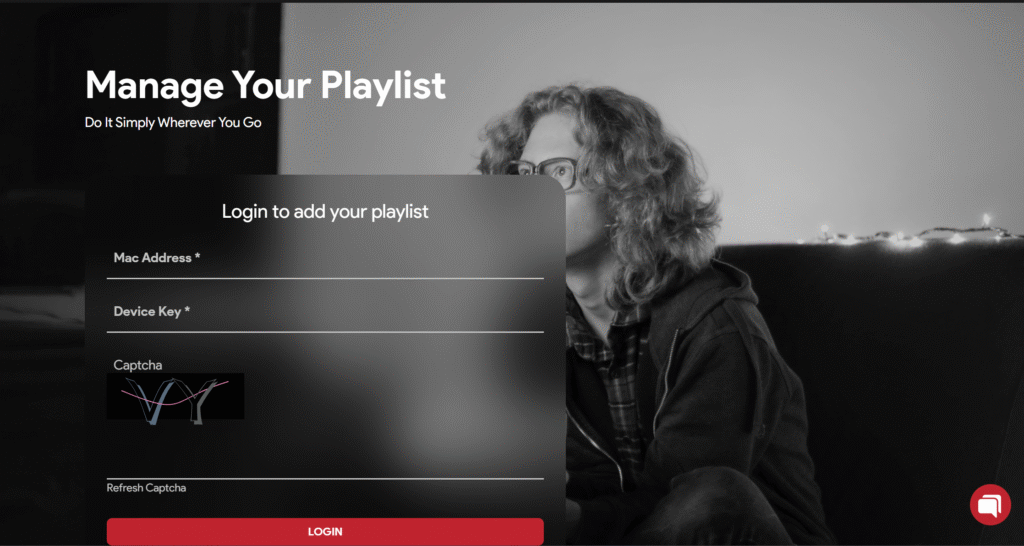
Go to the official Ibo Player Portal on your computer or smartphone: https://iboplayer.com/device/login

Enter the Device ID and Device Key.

Click on Login.

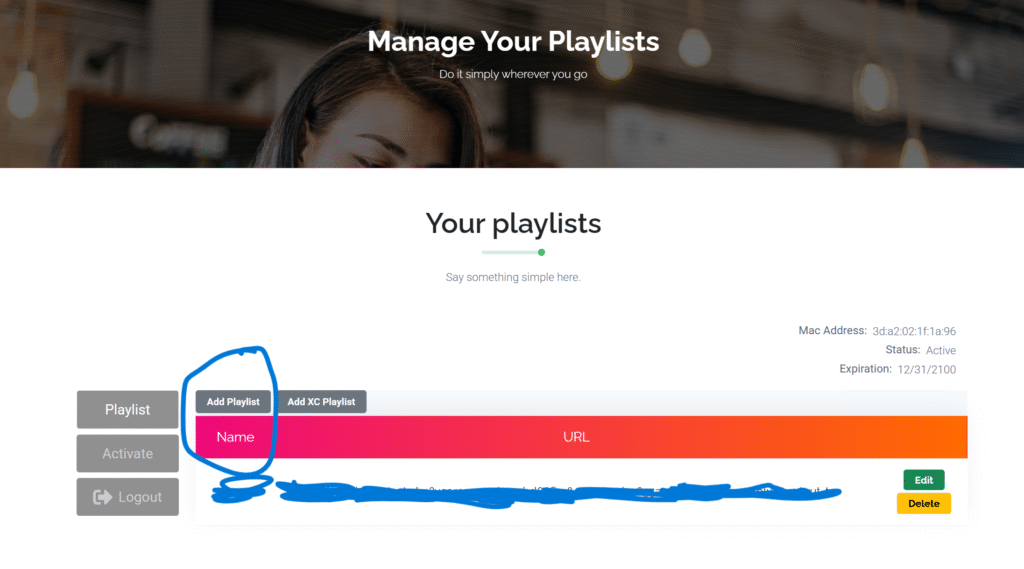
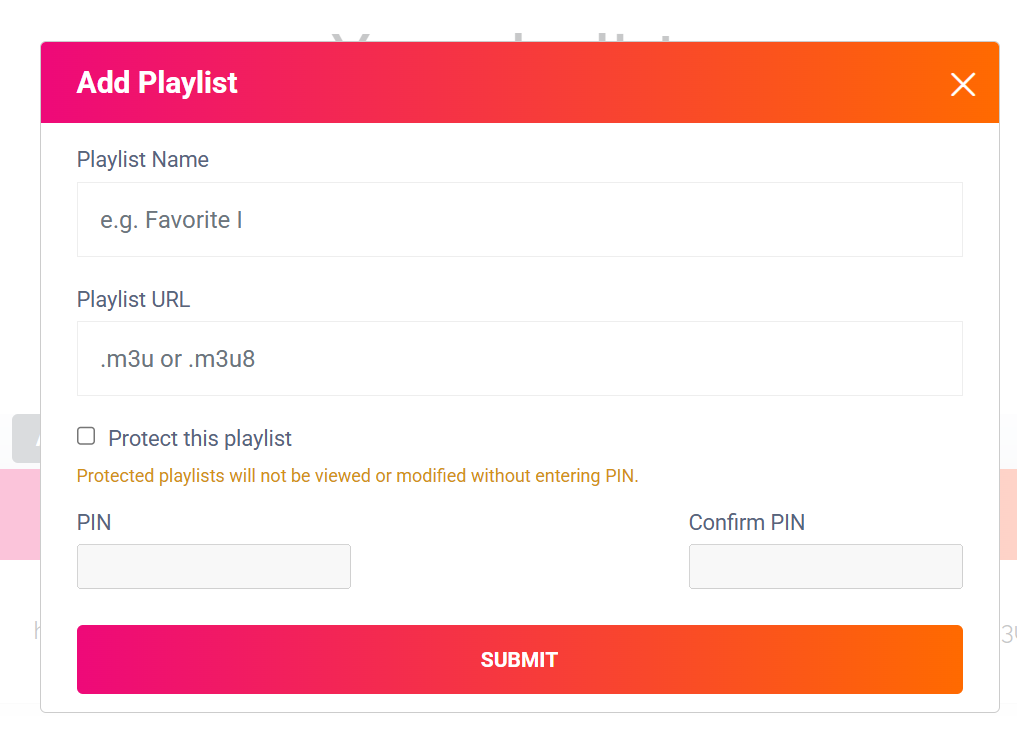
Add a new playlist:

Give the playlist a name (for example, IPTV eagle).

Paste the M3U URL you received from Eagle IPTV  .

Save.

✅ 4. Activate Ibo Player

Ibo Player offers a free trial period (usually 7 days).

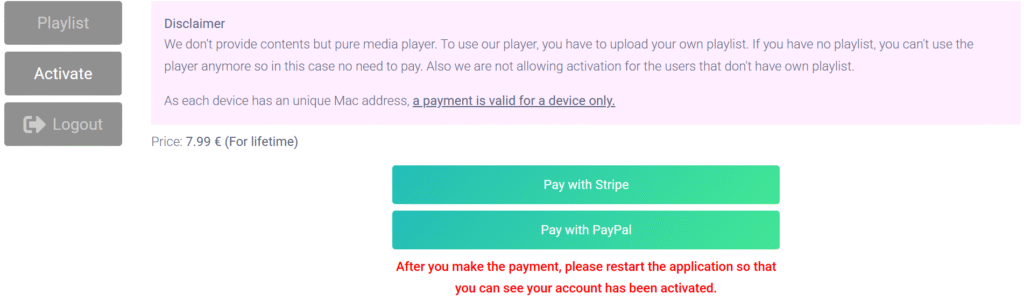
For unlimited use, you must activate the app once via the website. Follow the payment instructions on the Ibo Portal.

✅ 5. Restart the App

Go back to your TV.

Completely close Ibo Player.

Restart the app: your channel list will load automatically.

Done! Enjoy your IPTV subscription immediately .

💡 Tip:

With Ibo Player, you have a user-friendly interface and fast channel switching. Perfect for Samsung Smart TV.

📺 LG Smart TV

Step-by-step guide to installing IPTV with Ibo Player

✅ 1. Download Ibo Player

Turn on your LG Smart TV.

Open the LG Content Store.

Search for Ibo Player.

Select and install the app.

✅ 2. Open the App and Note the App ID & Device ID. Start Ibo Player.

On the home screen, you will see a Device ID and a Device Key (sometimes also called App ID). Write both down.

✅ 3. Activate and Upload your IPTV List

Go to the official Ibo Player Portal on your computer or smartphone: https://iboplayer.com/device/login

Enter the Device ID and Device Key.

Click on Login.

Add a new playlist:

Give the playlist a name (for example, IPTV Eagle).

Paste the M3U URL you received from IPTV Eagle.

Save.

✅ 4. Activate Ibo Player

Ibo Player offers a free trial period (usually 7 days).

For unlimited use, you must activate the app once via the website. Follow the payment instructions on the Ibo Portal.

✅ 5. Restart the App

Go back to your TV.

Completely close Ibo Player.

Restart the app: your channel list will load automatically.

Done! Enjoy your IPTV subscription immediately .

💡 Tip:

Ibo Player is fast, stable, and ideal for LG Smart TV users who want to enjoy IPTV without any problems.

📺 Samsung Smart TV

Step-by-step guide to installing IPTV with Ibo Player

✅ 1. Download Ibo Player

Turn on your Samsung Smart TV.

Open the Apps menu (Samsung Smart Hub).

Search for Ibo Player.

Select and install the app.

✅ 2. Open the App and Note the App ID & Device ID. Start Ibo Player.

On the home screen, you will see a Device ID and a Device Key (sometimes also called App ID). Write both down.

✅ 3. Activate and Upload your IPTV List

Go to the official Ibo Player Portal on your computer or smartphone: https://iboplayer.com/device/login

Enter the Device ID and Device Key.

Click on Login.

Add a new playlist:

Give the playlist a name (for example, IPTV eagle).

Paste the M3U URL you received from IPTV Koning.

Save.

✅ 4. Activate Ibo Player

Ibo Player offers a free trial period (usually 7 days).

For unlimited use, you must activate the app once via the website. Follow the payment instructions on the Ibo Portal.

✅ 5. Restart the App

Go back to your TV.

Completely close Ibo Player.

Restart the app: your channel list will load automatically.

Done! Enjoy your IPTV subscription immediately .

💡 Tip:

With Ibo Player, you have a user-friendly interface and fast channel switching. Perfect for Samsung Smart TV.

💻 PC & Laptop (Windows/Mac)

Step-by-step guide to watching IPTV via the Ibo Player App

✅ 1. Download the Ibo Player App

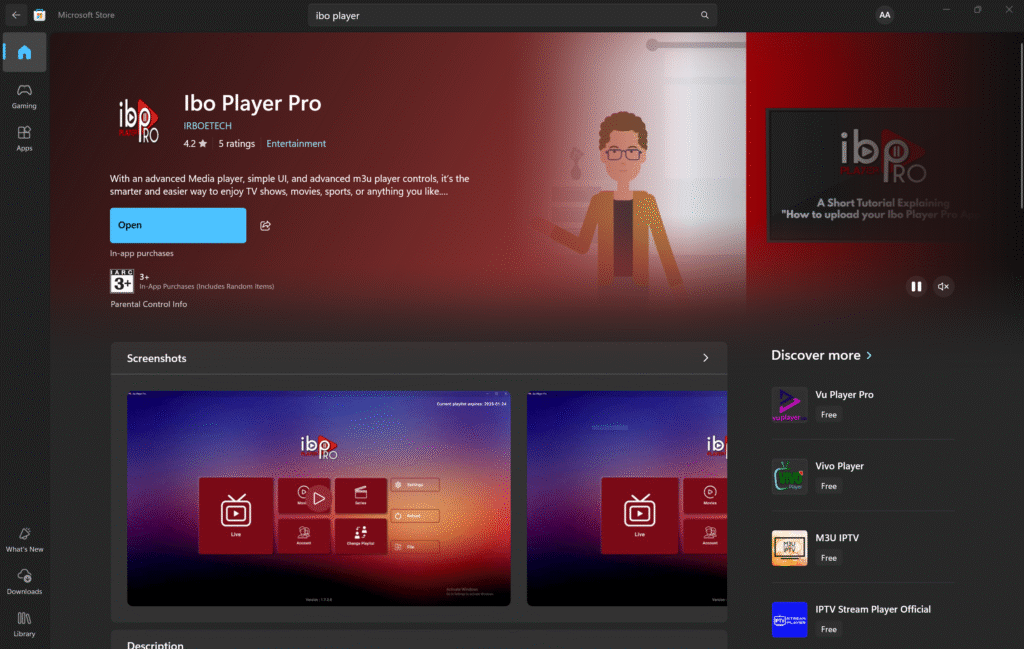
Open the Microsoft Store on your PC or laptop.

Search for Ibo Player.

Click on Download and install the app.

For Mac (macOS):

Go to the official website: https://iboiptv.com/

Download the Mac version there and install it.

✅ 2. Open the App and Note the App ID & Device ID. Start Ibo Player.

On the home screen, you will see a Device ID and a Device Key (sometimes also called App ID). Write both down.

✅ 3. Activate and Upload your IPTV List

Go to the official Ibo Player Portal on your computer or smartphone: https://iboplayer.com/device/login

Enter the Device ID and Device Key.

Click on Login.

Add a new playlist:

Give the playlist a name (for example, IPTV King).

Paste the M3U URL you received from IPTV Koning.

Save.

✅ 4. Activate Ibo Player

Ibo Player offers a free trial period (usually 7 days).

For unlimited use, you must activate the app once via the website. Follow the payment instructions on the Ibo Portal.

✅ 5. Restart the App

Go back to your PC.

Completely close Ibo Player.

Restart the app: your channel list will load automatically.

Done! Enjoy your IPTV subscription immediately .

💡 Tip:

With the Ibo Player App, you can watch safely and stably on your PC or laptop, with support for HD and 4K streams.

📺 MAG Box

Step-by-step guide to setting up IPTV on your MAG Box

✅ 1. Connect your MAG Box to the internet

Connect the MAG Box to your TV via HDMI.

✅ 2. Note down your MAC address

Go to Settings > System Settings > Device Info .

You see your MAC address (usually starts with 00:1A:79:…).

📩 Send your MAC address to us via email, WhatsApp, or the contact form.
We will activate your IPTV line based on this address.

✅ 3. Open the settings menu

Go to System Settings > Servers > Portals .

✅ 4. Configure the IPTV Portal

Enter, for example, the following under Portal 1 Name :Eagle IPTV

Enter the link you receive from us after activation in the Portal 1 URL field .

✅ 5. Save the settings and restart

Click OK or Save .

Restart the MAG Box (unplug and replug or via the menu).

✅ 6. Enjoy IPTV

After the restart, your box automatically loads all channels and VOD.

Use your remote control to change channels and enjoy stable IPTV streams!

Step-by-step guide to installing IPTV with Ibo Player

✅ 1. Download Ibo Player

Open the Google Play Store.

Search for Ibo Player.

Download and install the app.

✅ 2. Open the App and Note the App ID & Device ID. Start Ibo Player.

On the home screen, you will see a Device ID and a Device Key (sometimes also called App ID). Write both down.

✅ 3. Activate and Upload your IPTV List

Go to the official Ibo Player Portal on your computer or smartphone: https://iboplayer.com/device/login

Enter the Device ID and Device Key.

Click on Login.

Add a new playlist:

Give the playlist a name (for example, Eagle 4k IPTV).

Paste the M3U URL you received from Eagle 4k IPTV.

Save.

✅ 4. Activate Ibo Player

Ibo Player offers a free trial period (usually 7 days).

For unlimited use, you must activate the app once via the website. Follow the payment instructions on the Ibo Portal.

✅ 5. Restart the App

Go back to your TV.

Completely close Ibo Player.

Restart the app: your channel list will load automatically.

Done! Enjoy your IPTV subscription immediately .

💡 Tip:

Ensure that you have properly connected the Fire TV Stick to stable Wi-Fi for the best quality.

📦 Android TV Box

Step-by-step guide to installing IPTV

✅ 1. Download Ibo Player

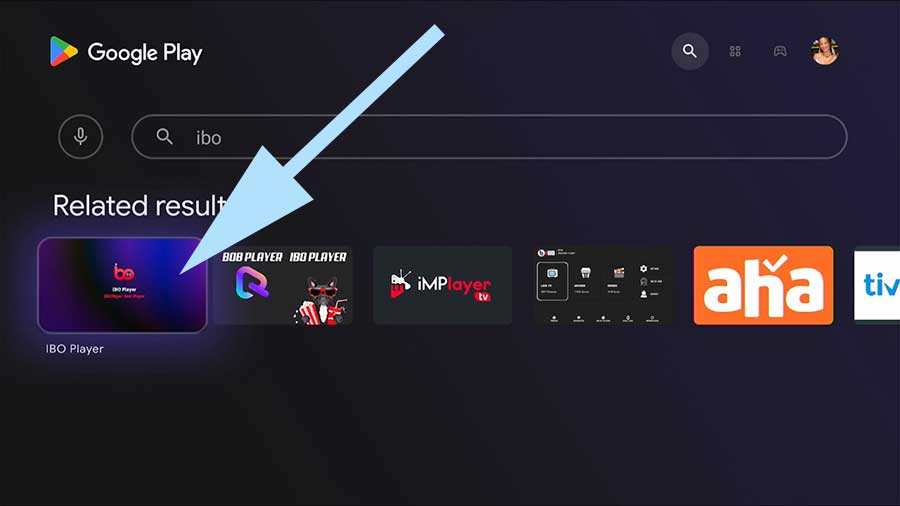
Open the Google Play Store on your Android TV Box.

Search for IBO Player.

Click on Install and wait until the installation is complete.

✅ 2. Open the App and Note the App ID & Device ID. Start Ibo Player.

On the home screen, you will see a Device ID and a Device Key (sometimes also called App ID). Write both down.

✅ 3. Activate and Upload your IPTV List

Go to the official Ibo Player Portal on your computer or smartphone: https://iboplayer.com/device/login

Enter the Device ID and Device Key.

Click on Login.

Add a new playlist:

Give the playlist a name (for example, IPTV Eagle).

Paste the M3U URL you received from IPTV Eagle.

Save.

✅ 4. Activate Ibo Player

Ibo Player offers a free trial period (usually 7 days).

For unlimited use, you must activate the app once via the website. Follow the payment instructions on the Ibo Portal.

✅ 5. Restart the App

Open IBO Player again.

All channels and VOD are available.

Navigate with your remote control and enjoy top-quality IPTV.

💡 Tip:

For the best streaming experience, we recommend connecting your Android TV Box via a network cable, if possible.

Eagle 4K IPTV : Enjoy premium entertainment anytime

anywhere with a seamless streaming experience.

Online support

Do you still have any questions? Send a message

© 2025 Eagle4K Streaming. All rights reserved.